AI Halloween Costume Portraits With Cinematic Direction
Direct your costume portrait
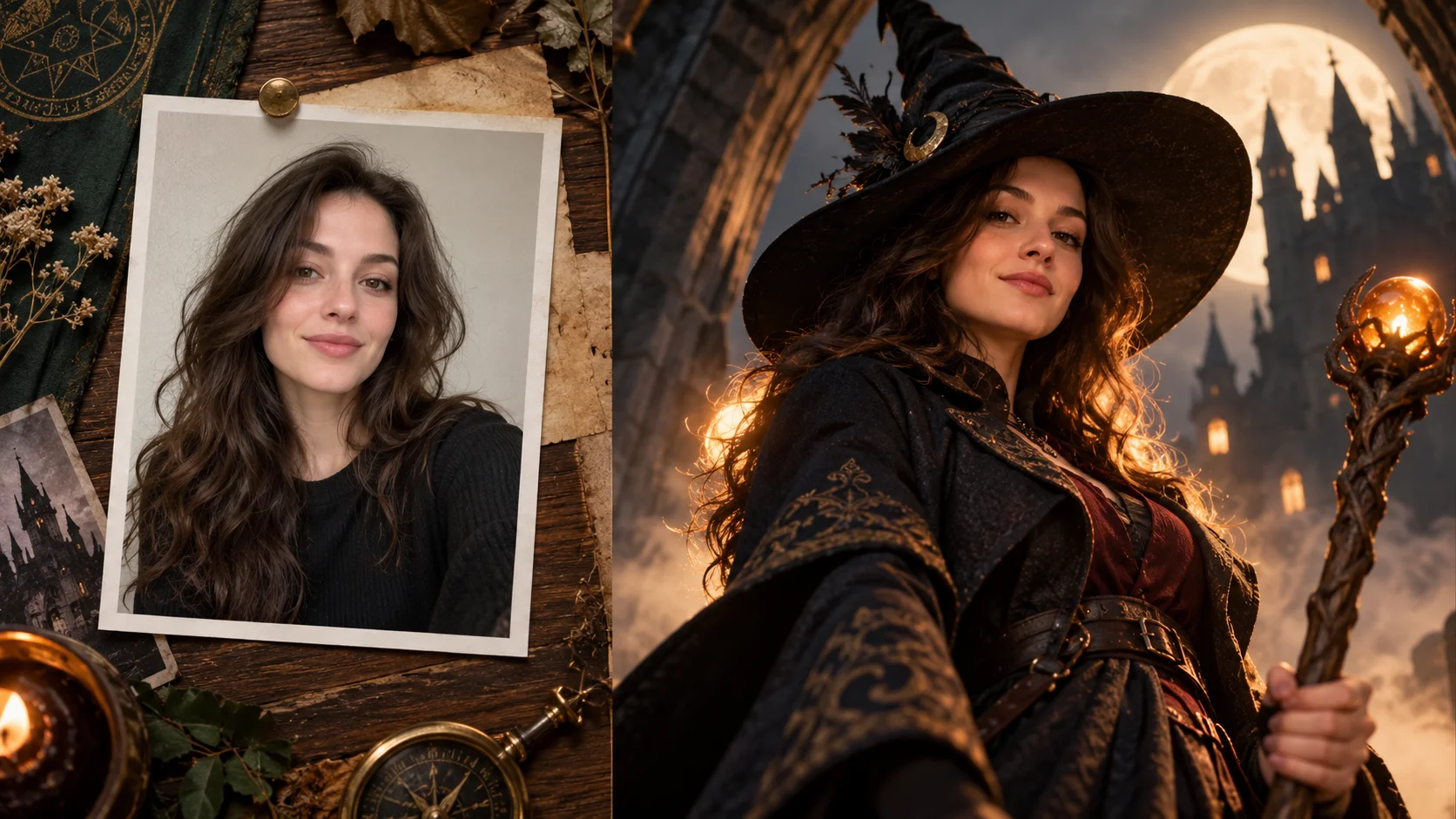
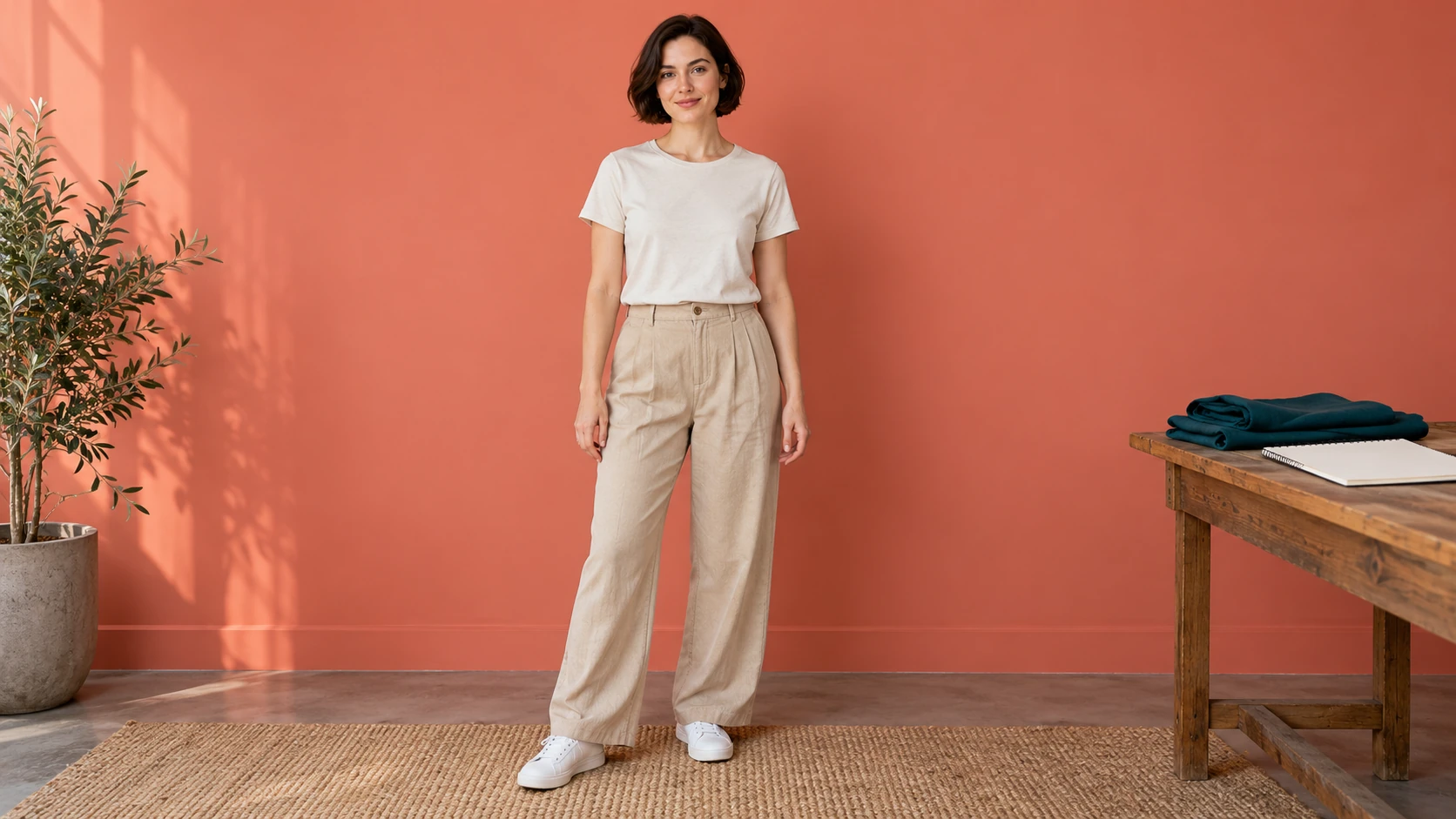
An everyday portrait provides the pose for a fully described costume concept.
History
The answers before you start
What does this tool make? The AI Halloween Costume image tool lets you plan a costume around a portrait you already like. Describe the outfit’s shape, fabric, colors and accessories, then keep the face and pose as anchors while the clothing changes.
How do I start? Choose Image to Image for a photograph-led edit, upload the reference and describe one specific change. Text to Image starts from words and needs no uploaded image.
Which photo should I upload? A full-length adult photo works well for a complete costume. Make the shoulders, waist and footwear easy to see. Ordinary clothes and a quiet background give you a clear starting point for comparing the new silhouette.
Can I try it for free? You can read the guide and prepare the description before submitting. A generated image uses the quoted credits. Check your available balance and any current offer in the generator or Pricing before choosing to run it.
How much does a result cost? Use the live quote beside the generation action for this image. Changing the model or output settings can change that quote, so read it again before each new request.
When can I see the result? After submission, open History to follow the task. Queue demand, model and output settings affect completion. Preparing a photo or editing the description alone does not start a task.
The AI Halloween Costume image tool lets you plan a costume around a portrait you already like. Describe the outfit’s shape, fabric, colors and accessories, then keep the face and pose as anchors while the clothing changes. Use the nearby generator to prepare a focused version, then compare the result with your reference.
An everyday portrait provides the pose for a fully described costume concept.
1
Choose and prepare the source photo
Pick one clear adult photo with a visible face, even lighting and no heavy obstruction. Avoid sunglasses, strong motion blur and crowded backgrounds. Prepare the look you want before uploading: witch, vampire, retro space explorer or an original character. Keep clothing and face as clear references, and expect the result to vary from the source.
2
Set the camera and character direction
Decide the shot before touching the prompt. Choose a lens feel, camera height and crop, then name the light source and mood. Use the editable prompt to describe costume materials, palette and expression. Model controls let you steer the rendering rather than accept the first default. Write short, concrete phrases and keep one visual idea dominant.
3
Check the quote, generate and review
The live credit quote appears before you commit, so read it first. Log in to run the job and keep results in History. Compare the still against your reference photo: face likeness, clothing cues, hands, background and crop. Regenerate with one changed variable at a time so you can see what the camera or prompt choice actually did.
Keep the important details readable
Review the face, sleeve openings, waist seams and accessory placement. Make sure costume details form one readable outfit rather than a collection of unrelated props. For this direction, explicitly retain facial identity, body pose and the intended framing.
Scenarios worth directing
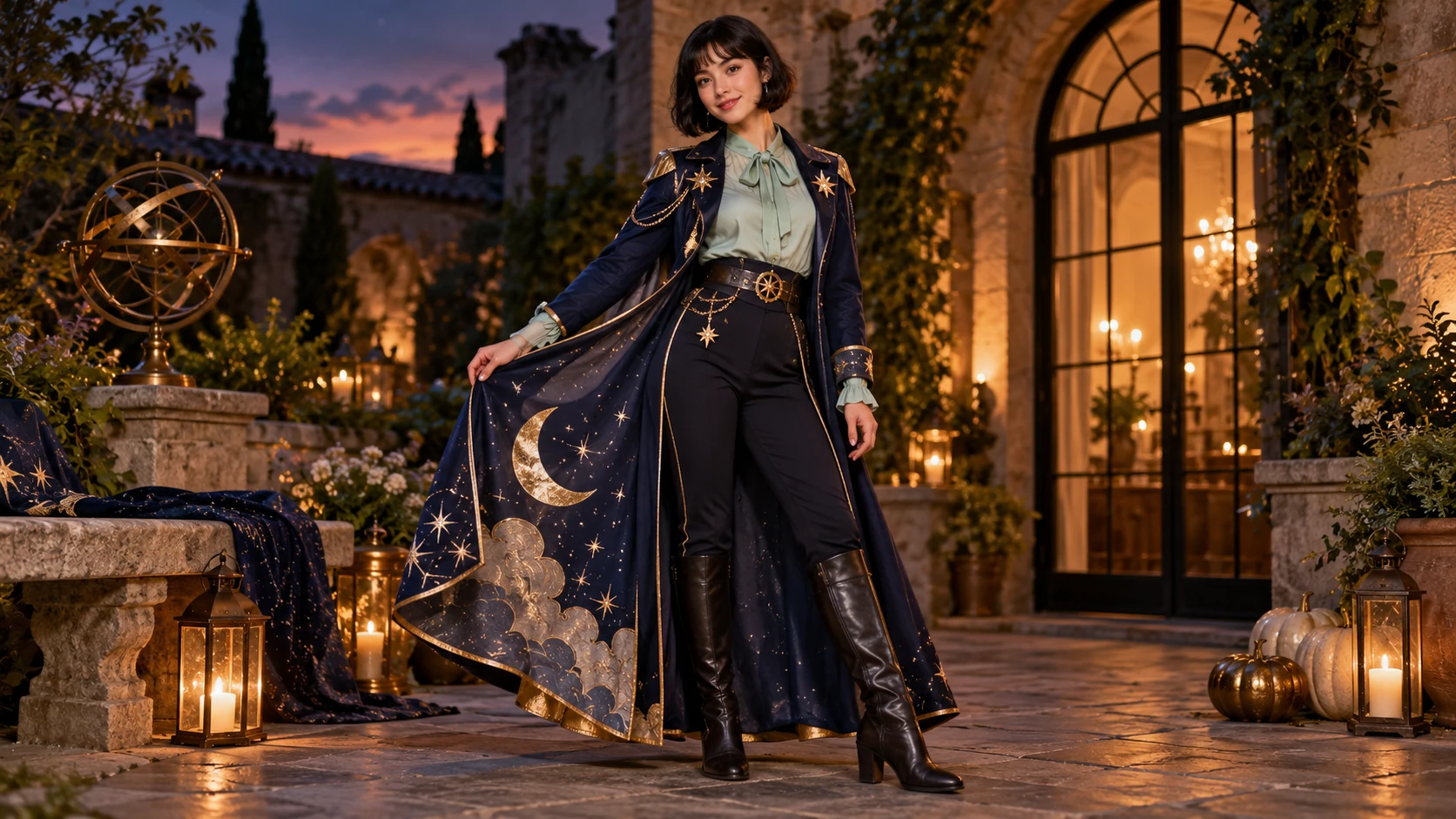
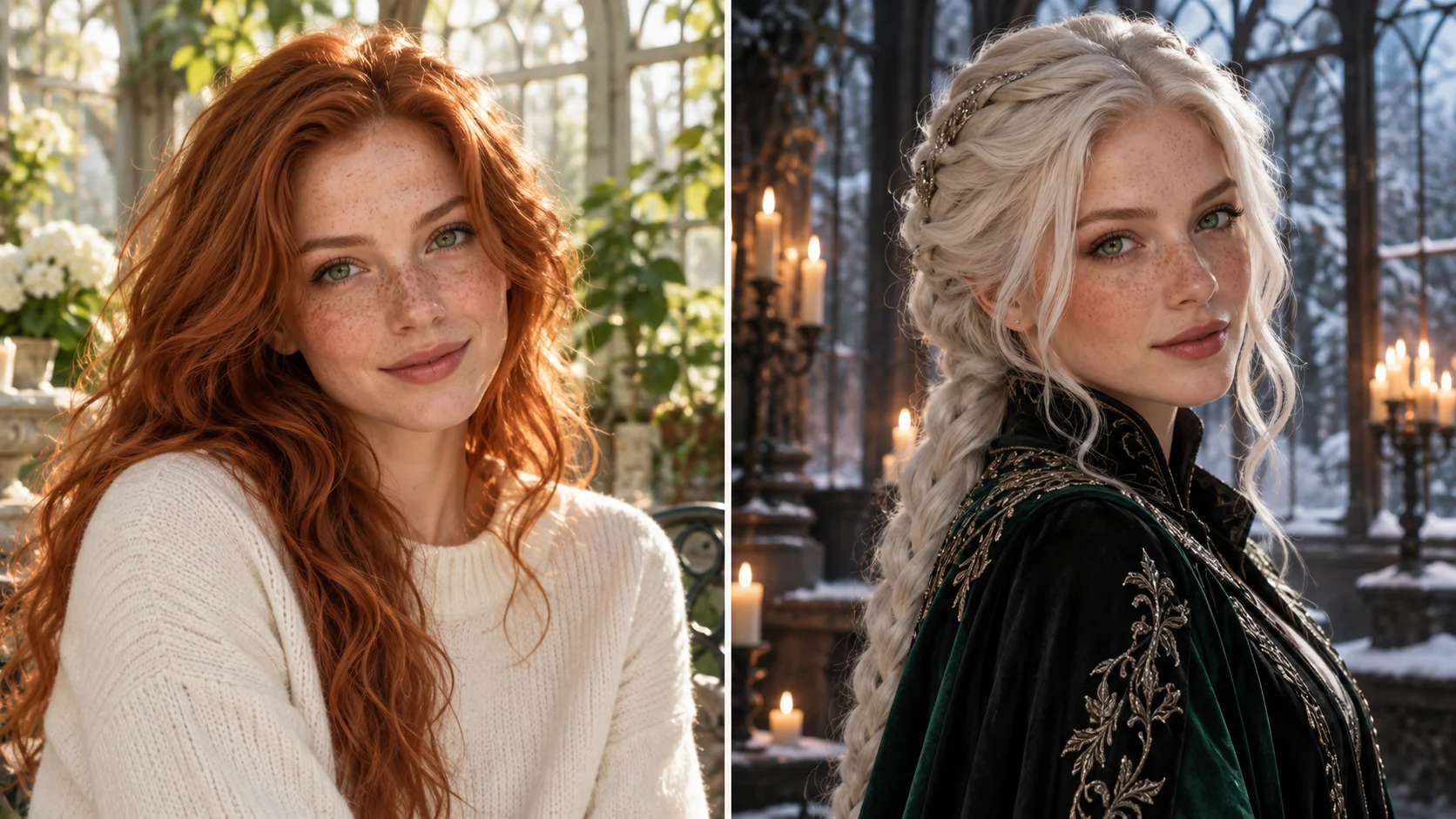
A clear outfit silhouette, visible face and believable fabric make the idea easy to follow.
A witch portrait with a low camera
Place the camera near the floor and shoot upward. A doorway or bare branches frame the figure. Warm rim light separates the hat and shoulders from a dark background, giving a storybook menace without a crowded set.
A vampire close-up in cool light
Move in tight and use a cool window source on one side of the face. Keep the background shallow and dark. The costume reads through collar shape and fabric sheen rather than full-body staging, which suits a portrait crop.
A retro space explorer in wide frame
Step back and show the figure against a plain horizon or corridor wall. Use a centered composition and a single hard light. The wide frame gives the suit and helmet room to read as a character rather than a headshot.
Preparation and review
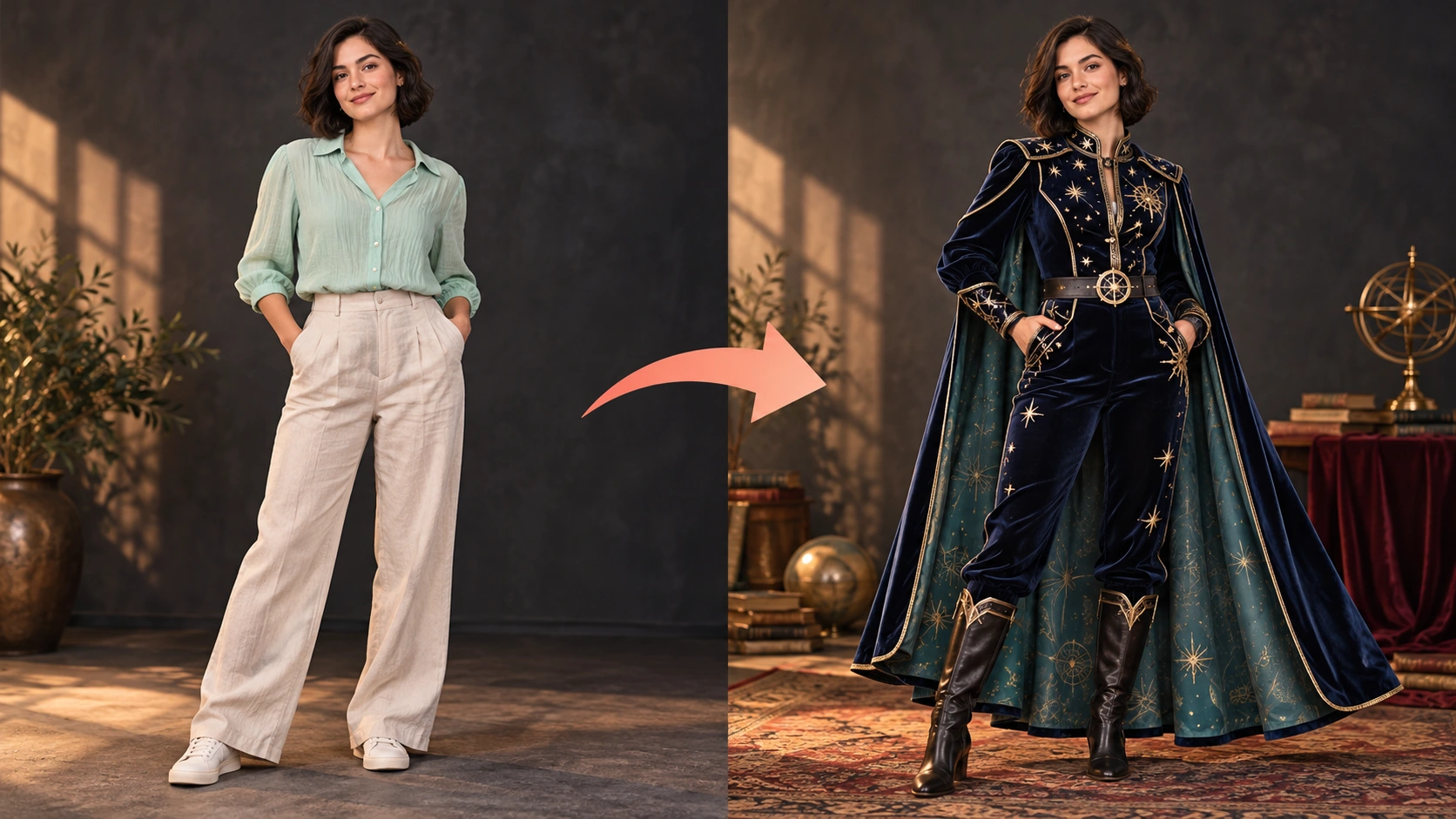
Plain clothing and a complete body outline are useful costume-planning inputs.
A full-length adult photo works well for a complete costume. Make the shoulders, waist and footwear easy to see. Ordinary clothes and a quiet background give you a clear starting point for comparing the new silhouette.
Describe one light source and one camera angle per prompt instead of stacking several.
Check hands, hairline and collar edges first, since those areas reveal mismatches fastest.
Keep a written note of each prompt and model setting so History review has context.
Write a direction you can compare
Name the change first, then name the details that should stay. For this ai halloween costume request, keep facial identity, body pose and the intended framing. A short, specific direction gives you a useful basis for comparing the next version.
Keep the same adult face and relaxed standing pose. Replace the everyday outfit with an original celestial explorer costume: dark velvet jacket, a flowing teal cape and subtle gold star details. Show complete boots and natural fabric folds.
Review the face, sleeve openings, waist seams and accessory placement. Make sure costume details form one readable outfit rather than a collection of unrelated props. When you revise, keep the other inputs steady. That makes it easier to tell whether a wording change helped the image.
Credits, waiting and the next version
The quote belongs to the actual model and output settings selected in the generator. A different model, aspect ratio or available resolution may change the cost. Check the current amount where you generate, and use Pricing when you need to compare the site’s available purchase options. Any free-credit offer depends on the eligibility and terms shown there.
Once submitted, follow the existing task in History while it is queued or processing. The chosen model and current demand affect how long it takes; this guide does not set a fixed delivery time. Inspect the completed image at a useful size before paying for another version. If you want an adjustment, keep the original photo and describe the one change you need.
AI Halloween Costume questions
Does this create a costume video or a still image?
The page creates a still image from one adult photo. It does not produce a costume-transition video. Plan the frame as a photograph: choose the crop, camera height, light and character, then judge the finished still rather than motion between frames.
What kind of photo works best as input?
Use a clear adult photo with an unobstructed face and even light. Avoid heavy filters, extreme angles and busy backgrounds. The face and clothing may vary in the result, so treat the upload as a reference and review the generated still against it.
How specific should the prompt be?
Name the costume, the lens feel, the camera height, the light and the mood in plain phrases. Keep one idea dominant. If you change everything at once, you cannot tell which instruction helped, so adjust one variable per run and compare.
Is the result an exact copy of the photo?
No. The output is an AI-generated still and clothing or face may vary from the reference. Check likeness, hands, fabric and background before using the image. Small mismatches are normal, and a corrected prompt often helps more than repeated reruns.
How do credits and account login work?
Log in to access the generator, jobs and History. A live credit quote is displayed before generation, so you can see the cost of the current request. Read the quote before each run.
How can I make a useful second version?
Keep the original reference and the version you want to improve. Review the face, sleeve openings, waist seams and accessory placement. Make sure costume details form one readable outfit rather than a collection of unrelated props. Change one part of the description, such as position, shape or light, so the next result answers a clear question.
Direct your Halloween portrait
Upload one adult photo, set the camera angle and costume prompt, read the live quote, then generate your still portrait.