

Character Creator
Upload a photo and describe your character.
Vineyard character
Old-town explorer
Coffee shop portrait
Mountain explorer
Window-light portrait
Dinner-night portrait
Two friends outdoors
Mountain cabin portrait
Evening city portrait
No examples yet.
South Park Character Creator: Give Your Portrait a Cartoon Personality
Build a smiling portrait with glasses and a favorite winter coat, or bring your own idea. Start with a photo or text, customize a ready-to-use prompt, and explore a character made for portrait transformations.
How to create your South Park character
STEP 1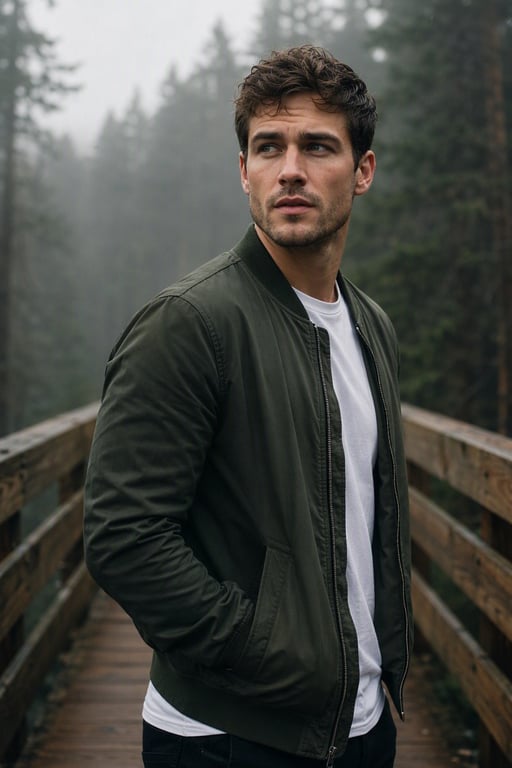
Choose your starting point
Upload a clear photo, or choose From text to invent a character.
STEP 2
Round eyes, flat colors, a favorite outfit, and a snowy town.
Describe your character
Use an example or add your outfit, expression and scene. Review the model and format.
STEP 3
Generate and download
Generate when ready. Review the result, refine your idea, and download your favorite version.
From real photo to cartoon character
Forest bridge portrait
Explore short dark hair and a green jacket on a forest bridge. Compare the clothing silhouette, facial features and setting, then customize the prompt for your own character.
Old-town explorer
Explore curly hair and a tan coat on an old-town street. Compare the clothing silhouette, facial features and setting, then customize the prompt for your own character.
Coffee shop portrait
Explore long brown hair, olive shirt and a necklace at a café. Compare the clothing silhouette, facial features and setting, then customize the prompt for your own character.
Window-light portrait
Explore long blonde hair and a lavender cardigan near a sunny window. Compare the clothing silhouette, facial features and setting, then customize the prompt for your own character.
Dinner-night portrait
Explore dark hair and a green blouse in a warm restaurant. Compare the clothing silhouette, facial features and setting, then customize the prompt for your own character.
Mountain cabin portrait
Explore long dark hair and a red plaid shirt on a snowy cabin balcony. Compare the clothing silhouette, facial features and setting, then customize the prompt for your own character.
Evening city portrait
Explore gray hair and a black jacket with an evening skyline. Compare the clothing silhouette, facial features and setting, then customize the prompt for your own character.
A South Park character creator for portrait transformations
Bring a smiling portrait with glasses and a favorite winter coat into a simple cartoon world. face in hole lets you begin with a portrait or a written idea, then use the available image generator to develop the look. Think of the example cards as creative starting points: each Use button loads a prompt and, where available, its reference photo so you can make a new request with your own choices.
A useful portrait transformation begins with an unobstructed face. Mention your glasses, hair and coat if they matter to recognition, and inspect those features before selecting a final image.
Choose between a photo and a written idea
From photo is useful when your starting point is an existing person, outfit or pose. Upload a clear image that you have permission to use, and describe which visible details matter to your portrait transformations. A front-facing or gently angled portrait with a readable face gives you a more understandable reference than a crowded scene or a heavily obscured subject.
From text starts with an original description. State the character’s hair, clothing, expression and setting in plain language. You do not need a reference photo for this mode. Random prompt provides an editable idea when you want inspiration; selecting it prepares the text and leaves generation under your control. Review the model and settings before submitting.
Write a prompt that gives your character direction
For portrait transformations, start with the person and the role they play. Describe the important silhouette, add two or three clothing details, choose an expression and name the location. You might begin with “a smiling portrait with glasses and a favorite winter coat, South Park style paper-cut cartoon, round expressive eyes, flat colors.” Adjust that brief to suit your own subject instead of keeping every detail from an example.
A South Park character maker works best as an iterative creative workflow. Keep the main description stable and change one detail at a time. If the background feels busy, ask for fewer objects; if the costume loses its identity, simplify the brief and emphasize its defining colors. Review each image rather than assuming a longer prompt will preserve every detail exactly.
Learn from the examples and photo comparisons
The example gallery gives you several different starting points, including café portraits, outdoor explorers and evening scenes. Use fills the generator without submitting a paid request. You can replace a supplied reference with your own photo, edit the suggested character description and choose a supported format. These authorized reference examples illustrate a direction; their appearance is not a promise that a new generation will reproduce them exactly.
Drag a comparison handle to inspect the original photograph and its cartoon interpretation. Look at clothing, facial features, background shapes and pose separately. The panels also move slowly back and forth when visible, while direct interaction pauses the motion. Keyboard users can focus the comparison and adjust it with the arrow keys. Use the text beside each pair to decide which details to carry into your own prompt.
Refine the result for portrait transformations
A useful portrait transformation begins with an unobstructed face. Mention your glasses, hair and coat if they matter to recognition, and inspect those features before selecting a final image. Before downloading, check the face at a useful size and inspect accessories, hands and any detail that matters to your intended use. Compare the image with your brief, then decide on the smallest change that would improve it. Saving your favorite prompt makes that next step easier.
Choose the output format for the place where the character will appear. A square image is a natural starting point for a profile picture; a portrait composition can show a full outfit; a wider image can give a scene more room. The available aspect ratios, resolution options and credit cost come from the selected model. Review those controls rather than assuming that every model has identical settings.
Explore characters, gaming themes and original worlds
People searching for South Park characters or Cartman South Park often want the familiar visual language: simple shapes, winter clothing, large round eyes and expressive faces. You can use those broad visual cues while giving your own character a distinct outfit and personality. Describe your idea directly and inspect the result for the details that matter to you. This creator is an independent tool and does not imply an official affiliation.
A South Park World of Warcraft inspired idea can combine a cartoon character with fantasy accessories such as a cloak, staff or backpack. Begin with one character and one setting rather than an elaborate battle scene. Keep the gaming theme focused on costume and environment, and use an original design when you want a personal avatar or story concept.
Frequently asked questions
Which portrait features should I describe?
Name the features you want the model to emphasize: glasses, hair length, facial hair and a favorite item of clothing. Keep the request focused on recognizable details rather than expecting a pixel-perfect copy.
How do I use the South Park character creator?
Choose From photo or From text, prepare your reference or description, and review the available model and output settings. Generate when ready, inspect the image, and download your preferred result. For portrait transformations, keep your first brief focused on a single subject and a simple scene.
What happens when I click Use on an example?
Use loads the example’s prompt and its reference photo when one is available. It returns you to the generator so you can replace the reference, edit the description and review the settings. It does not submit a generation or spend credits.
Can I create a character without uploading a photo?
Yes. Select From text and describe an original character. Include clothing, expression, framing and location. A brief about a smiling portrait with glasses and a favorite winter coat gives you a concrete starting point, and Random prompt can help when you want a different idea.
Will the cartoon look exactly like my photo?
A reference guides the image model, but exact identity, pose and background preservation are not guaranteed. Use a clear image, describe the features you care about and review the result. If necessary, simplify the prompt and request another version.
Is this South Park maker free to use?
You can browse examples and prepare your prompt before submitting. Generation availability and credit requirements depend on your account, the selected model and the current plan. Check the displayed cost and the Pricing page before starting a request.
Can I choose the image size and aspect ratio?
Use the supported format controls shown by the selected model. Available ratios and resolutions can differ across models and modes. Choose a composition for your intended use, then check the final image for crop-sensitive details before downloading.
Are the example prompts original generation records?
The gallery contains authorized reference material. Where the source did not provide an original prompt, an editable suggested prompt was prepared to help you explore a similar idea. A suggestion is not a verified record of how the reference image was generated.
How do I improve an image that misses important details?
Review the result against your portrait transformations brief. Identify one missing feature, such as the outfit color or facial accessory, and revise that part of the description. Avoid combining several unrelated corrections into a single request.
Can I use the result for an avatar or post?
You can download a completed image and prepare it for your intended use. Check recognizable people, protected characters and the rights that apply to your project. Keep the face readable at the final display size and add any essential text in your usual editor.
Can I request a refund for my purchase?
You can request a refund within 10 days of purchase if you have unused credits from that purchase and provide a clear reason, subject to our Refund Policy. If eligible, an unused purchase can be fully refunded; a partly used purchase is refunded in proportion to its remaining unused credits. Fully used purchases and free or promotional credits are not refundable.
Do credits expire or carry over?
Credit validity depends on the pack, subscription or promotion that issued them. Review the purchase terms and expiration dates in Settings > Credits. A renewal or new purchase does not extend older credits. Use credits before their stated expiration; do not assume unused subscription credits roll over indefinitely.
What happens to credits if generation fails?
Credits charged for a task that is confirmed as failed due to a system error are returned automatically. A task that is still processing has not yet been confirmed as failed. Check its status and your credit history before submitting again. If a confirmed failure still shows an unresolved charge, email support@faceinhole.app with the task ID.
Can I get credits back if I do not like the result?
AI results can vary, so a completed result that differs from your expectations is not automatically treated as a technical failure. Eligible completed image tasks can be submitted for credit refund review using the refund option where available; approval is required. For a video or another issue, contact support@faceinhole.app with the task ID and details. A credit refund returns credits, not money to your payment method.
How can I get help with billing or a generation?
Email support@faceinhole.app. For billing, include your account email and order ID; for generation, include the task ID, issue description and relevant screenshots. If you purchased as a guest, keep the original browser data and payment receipt so we can help locate the purchase.
faceinhole.app · Updated
What's new on this page
- — Added editable example prompts and separate drafts for text and reference modes, with an action to restore the example.
- — Updated page copy and content.
- — Page content published.